
Tired of bank statements in incompatible formats that complicate your financial management? Our “CSV and OFX Mapper for Bank Statement” is the solution for effortlessly transforming any CSV or Excel file into an OFX format. More than just a converter, it automatically cleans and standardises your transactions, guaranteeing impeccable, ready-to-use data. Save precious time and ensure perfect compatibility with all your management software. Simplify the integration of your bank statements and regain control of your finances.
Integrate your bank statements into Finotor effortlessly
Managing bank statements is often a headache. CSV or Excel files supplied by banks? Most of the time, they’re incompatible with your management software. A real obstacle course.
But the solution is simple. Finotor’s CSV and OFX Mapper for bank statements has been designed to do just that. It transforms any CSV or Excel file into a clean, universal OFX format. No more endless manual operations. Integration into Finotor is quick and easy. You save precious time. For more details, see our dedicated page.
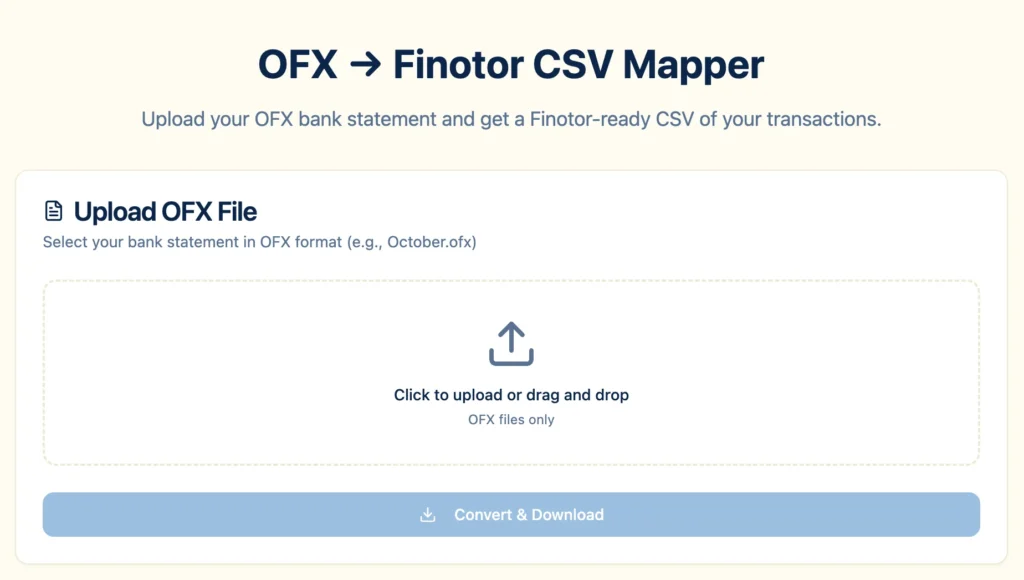
More than a converter, a cleaning tool
Let’s be clear. The real problem with CSV files from banks is not the format, but the chaos they contain. From one bank to another, nothing corresponds: date formats, columns, descriptions. It’s a real mess.
This is precisely where our tool comes in. It doesn’t simply convert a file. Its real strength lies in cleaning up and standardising each transaction. Dates are unified, labels clarified and amounts formatted. The result: an impeccable OFX file, ready for use.
You save an incredible amount of time and your data is more reliable. Here’s what the tool does:
- Easy conversion: Convert your CSV or Excel files into OFX in just a few clicks.
- Automatic cleansing: Standardise dates, amounts and descriptions.
- Guaranteed compatibility: Generates files that are perfect for your software.
To integrate your statements into Finotor, see our dedicated page for full details.
Compatibility, our priority
An OFX file is good. An OFX file accepted everywhere is better. That’s why we designed the CSV and OFX Mapper. Your aim is to integrate your statements into Finotor, but our mission goes further: to offer you total freedom.
The files generated are compatible with a wide range of management software: QuickBooks, GnuCash, Xero, Odoo… They will recognise your data without a hitch. The objective? Zero friction. Integrate your transactions wherever you want.
| Typical CSV field | Corresponding OFX field | Profit with Finotor |
|---|---|---|
| Date | Standard format (YYYY-MM-DD) | |
| Wording/Description | Cleansed label | |
| Flow | (DEBIT) | Unified amount (-XX.XX €) |
| Credit | (CREDIT) | Unified amount ( XX.XX €) |
The technical complexity disappears. To discover the simplicity of the tool and get started, visit the dedicated page for details.
FAQ
What is a CSV file and an OFX file?
A CSV (Comma-Separated Values) file is a simple text format, similar to an Excel spreadsheet, where the data is separated by commas. Banks often supply them, but the format varies from one institution to another. An OFX (Open Financial Exchange) file is a standardised format designed for the exchange of financial data. It is structured to be read and understood by most financial management software, ensuring compatibility.
How can I convert my CSV bank statement to OFX format?
Converting a CSV file into OFX requires a mapping tool that interprets the columns in your file (date, label, amount) and transforms them into the standardised OFX structure. Finotor’s CSV and OFX Mapper tool is specifically designed for this purpose. All you have to do is load your CSV file, and the tool will clean it up, normalise it and convert it into an impeccable OFX file, ready to be imported into your software.
Can I create a CSV file from my bank statement?
Yes, most online banks allow you to download your account statements directly in CSV format. Look for an option such as “Download transactions” or “Export” in your banking customer area. You should be able to select the CSV format and the desired period. If only the PDF format is available, you will first need to extract the data from the PDF into a spreadsheet and then save it as a CSV.
How do I create an OFX file?
Creating an OFX file manually is complex because you have to respect a very strict tag structure. The simplest and most reliable method is to use a converter. With a tool like Finotor’s CSV Mapper, you don’t need to know the technical details. You start with your CSV or Excel file, and the application generates a valid, compatible OFX file for you in just a few clicks.
Is the OFX format similar to PDF?
No, not at all. PDF is a visual document format, designed to be read by a human being and to retain a fixed page layout. An OFX file is a structured data file, designed to be read and processed by a machine (accounting software, for example). Whereas a PDF presents the information, an OFX contains it in a way that can be used to automate tasks such as bank reconciliation.